Pronunciation Glossary (save and reuse alias)
A pronunciation glossary helps AI voices pronounce specific terms consistently across a project. Use it for character and place names, brand names, acronyms, technical terms, or other words that may require a specific pronunciation. Instead of correcting the same term during every proofreading pass, add it to the glossary once and reuse it across languages and voices.
Apply a glossary to a project
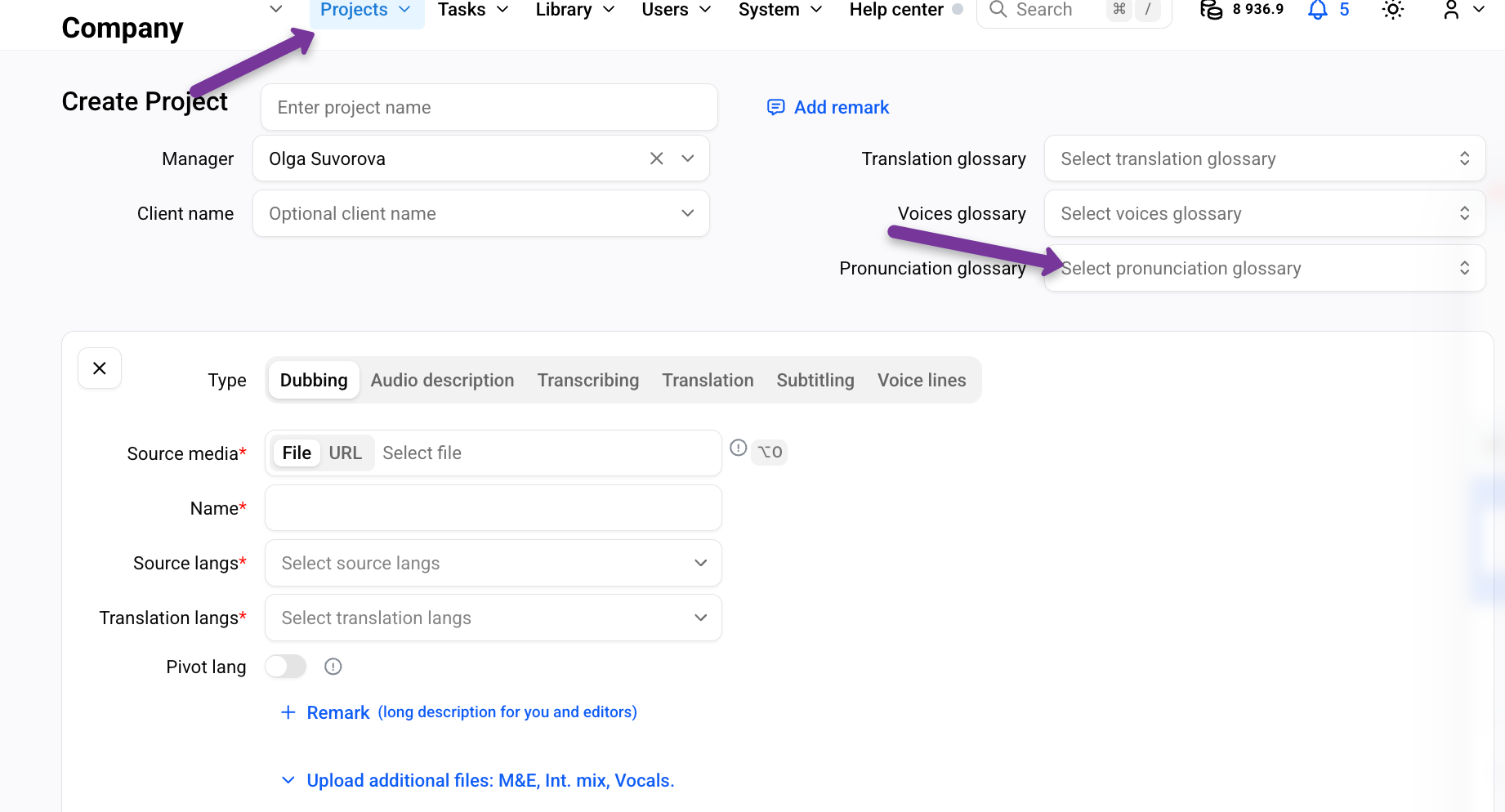
A pronunciation glossary can be selected when creating a project.
Click Select pronunciation glossary.
Select the glossary to use.
Continue creating the project.
Create a pronunciation glossary
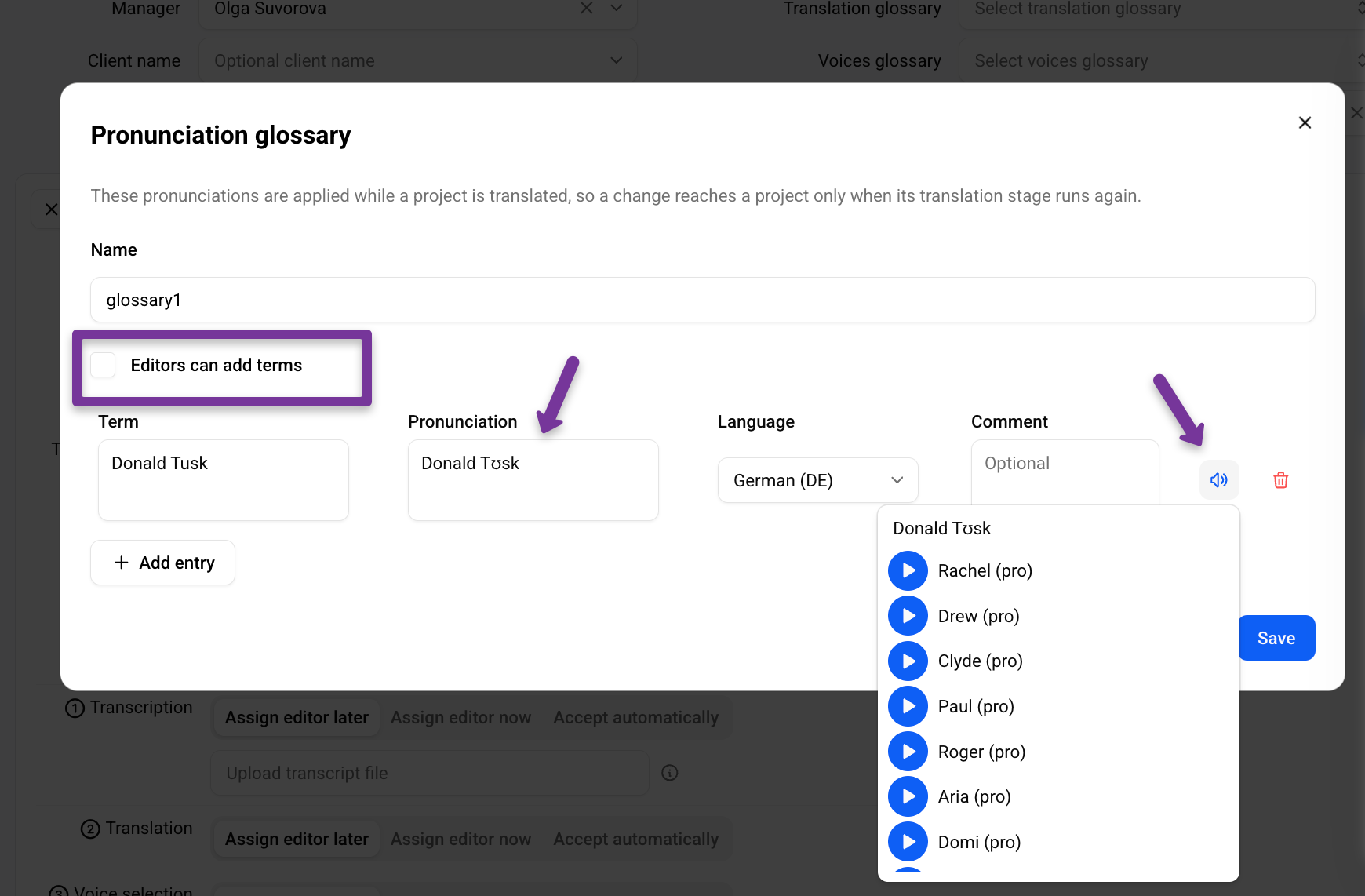
Enter a name for the glossary.
Click Create.
Add a term.
For each required language, enter the spoken form — how the term should be pronounced.
Preview the pronunciation with different voices to check the result.
Add spoken forms only for the languages where the term requires pronunciation guidance.
Note: A pronunciation glossary increases the likelihood of getting the expected pronunciation, but does not guarantee an identical result across all voices. Pronunciation may vary depending on the voice and language. Preview important terms, such as character names and brand names, before finalizing the project.
Allow editors to update the glossary during proofreading
To let editors add new terms or update pronunciation guidance while proofreading, enable Editors can add terms when creating or editing the glossary.
When this option is enabled, Save to glossary is available in the proofreading editor alongside Set alias.
Editors can use it to add a term and its pronunciation directly to the project glossary without leaving the proofreading workflow.
Was this helpful?
Still need help? Share an idea