Audio Tags (prompts in [brackets]) in S-tier Voices and Expressive Clones
Audio tags influence generated speech by adding emotions, pauses, vocal styles, non-speech sounds, and sound effects.
Audio tags use square bracket formatting.
Tags can be inserted at the beginning, middle, or end of a sentence.
Example:
[surprised] Wait… where are my cookies? [gasps]
Audio tags are supported only for S-tier voices and Expressive clones.
Add Audio Tags
Enter tags directly into the script tab using square brackets.
Examples:
[whispers] This stays between us.
You actually did it! [laughs]
I thought you knew… [long pause] but apparently not.
Multiple tags can be combined within the same chunk.
Example:
[excited] We finally made it! [laughs]
Add Audio Tags with Cursor actions
In the chunk editor
Open the required chunk.
Place the cursor in the desired position
Click Cursor actions
Cursor options are available from Cursor actions or from the right-click menu in the editor.
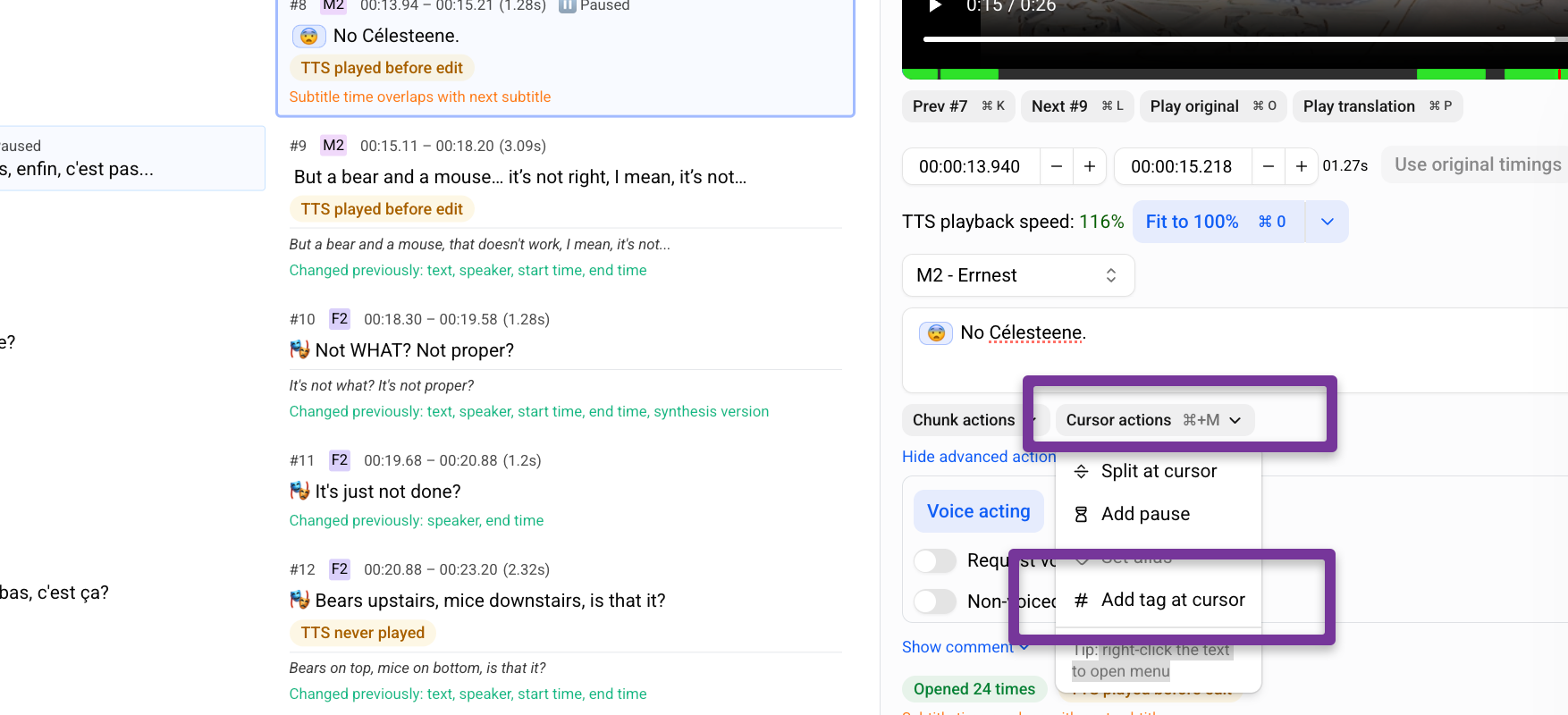
Select an audio tag from the pop-up, or enter a custom one.
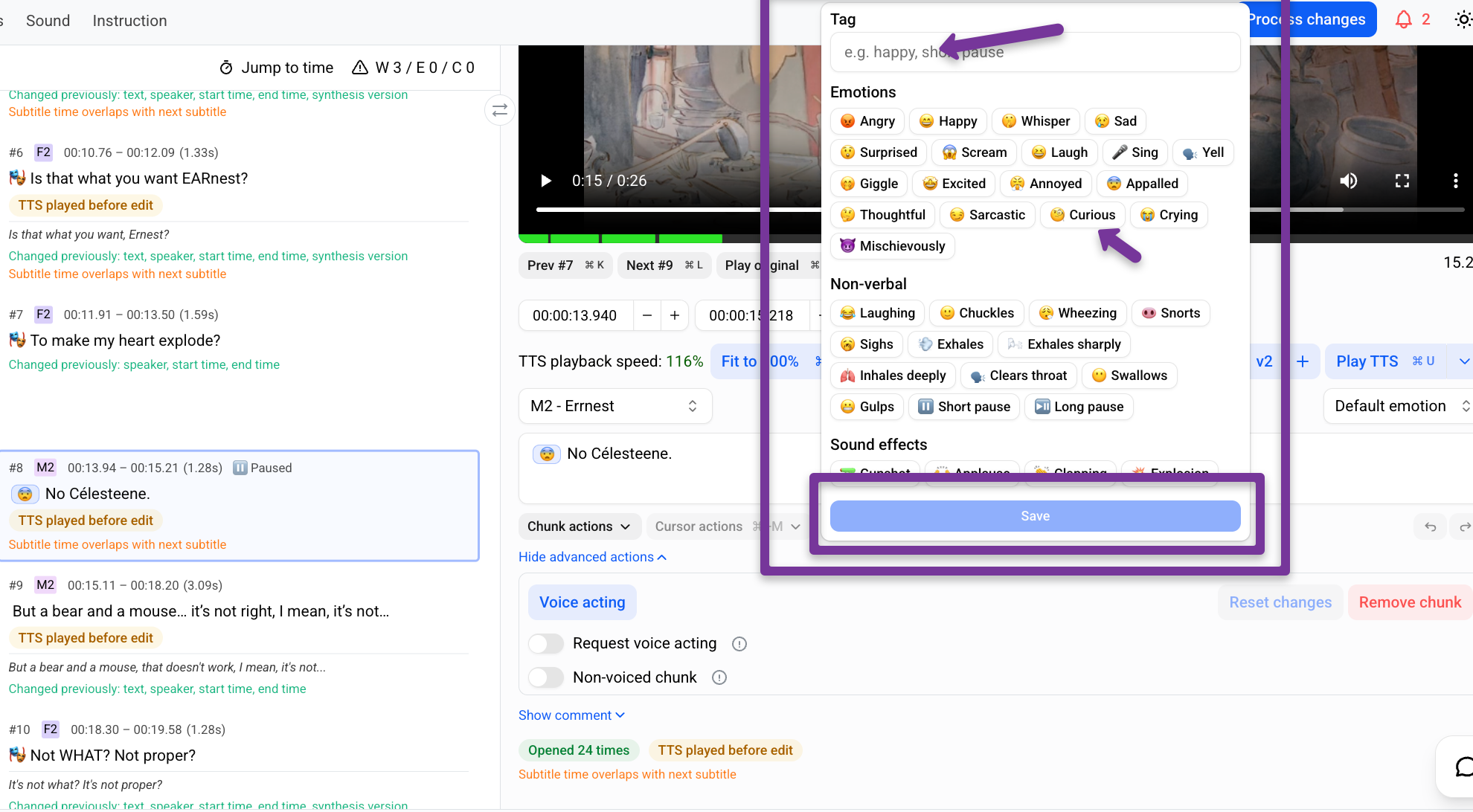
Click Save.
Audio tags added via Cursor options appear as icons in the script.
This is an alternative to adding tags manually in text, for example:
[happy].
In the Versions panel
Open the Versions panel.
Place the cursor in the desired position
Click Cursor actions
Cursor options are available from Cursor actions or from the right-click menu in the editor.
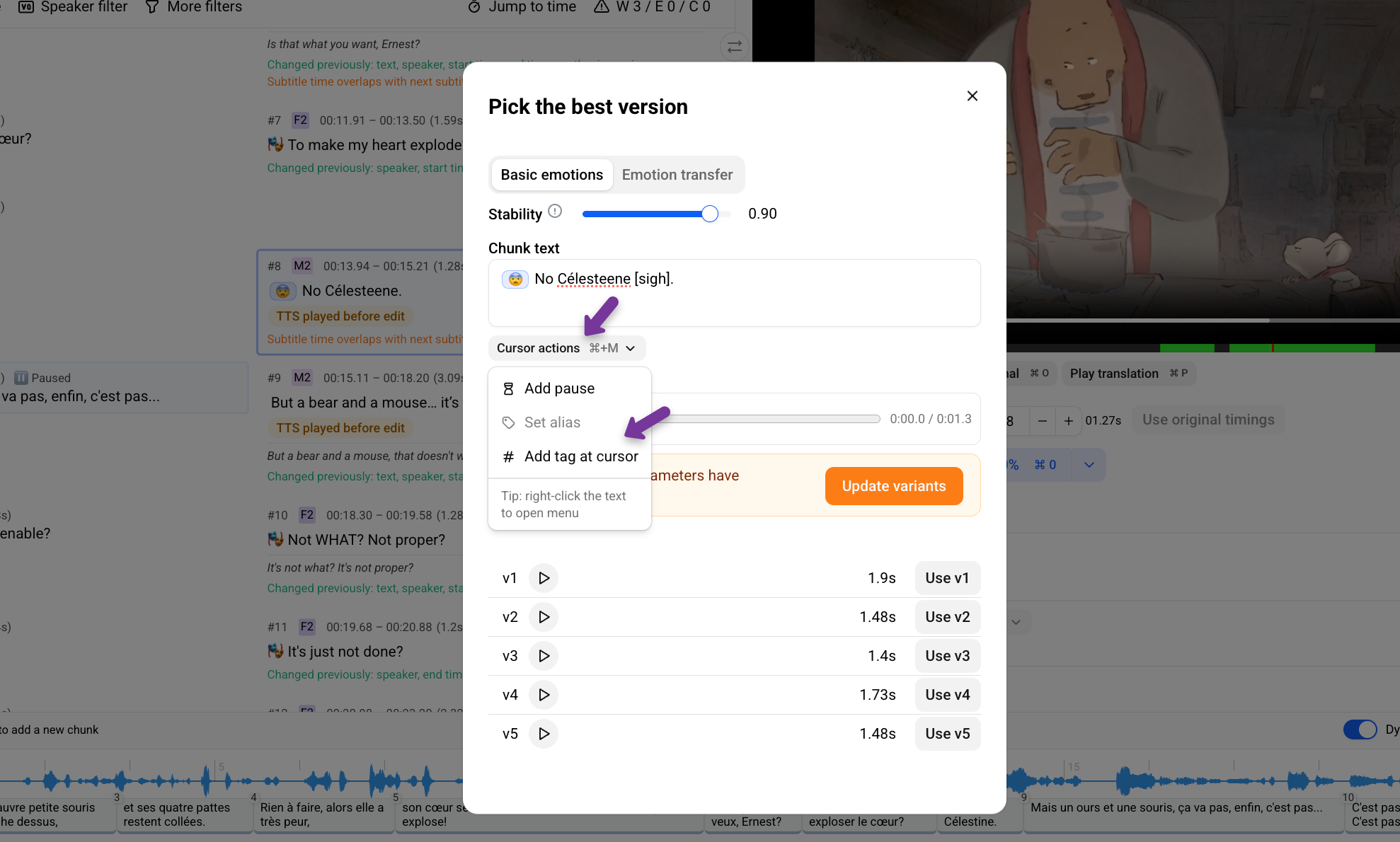
Click Add tag at cursor or enter the tag manually.
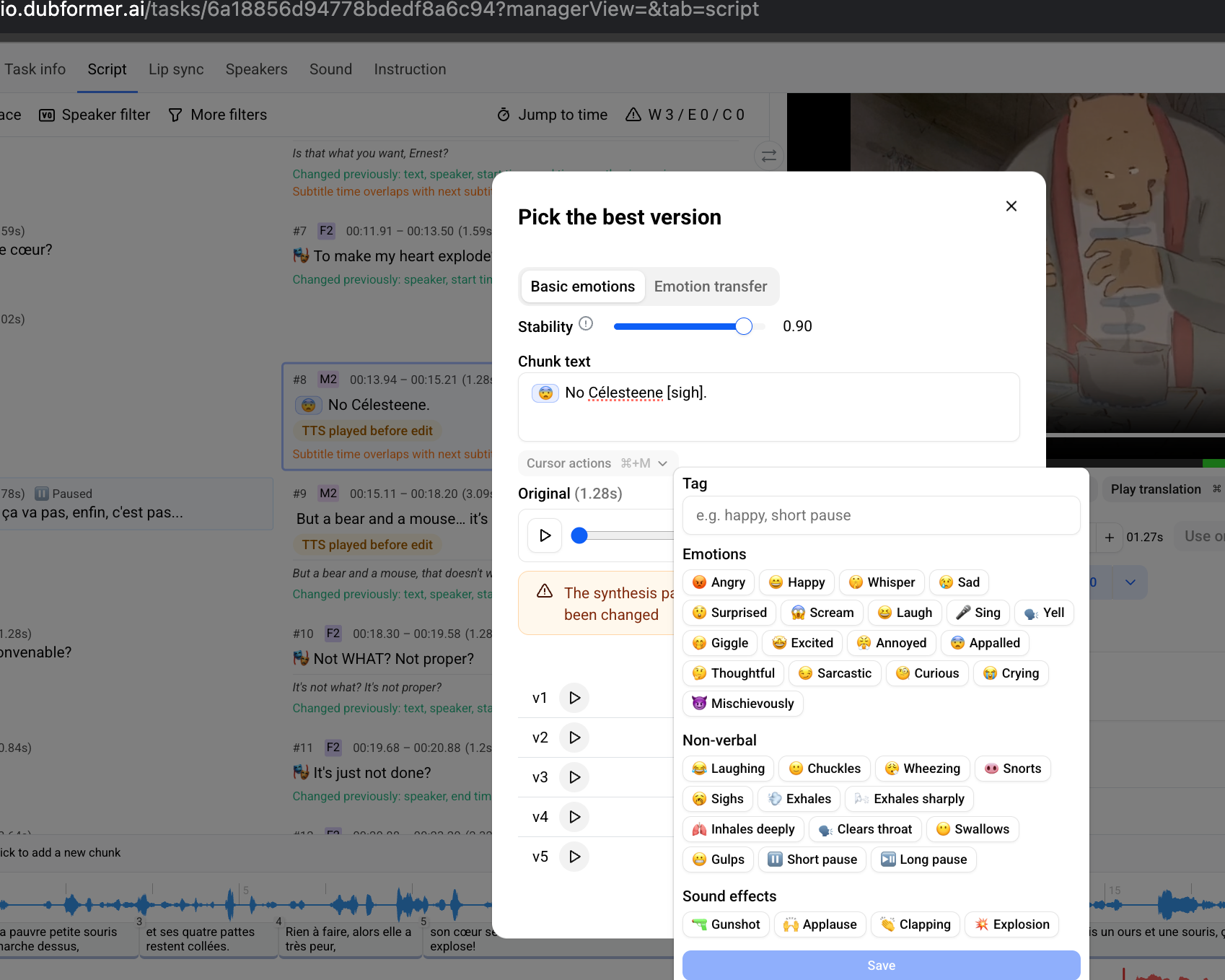
Save changes.
Apply Audio Tags to Multiple Chunks
Select one or more chunks in the Script view.
Switch the action toggle to Emotion and click Select
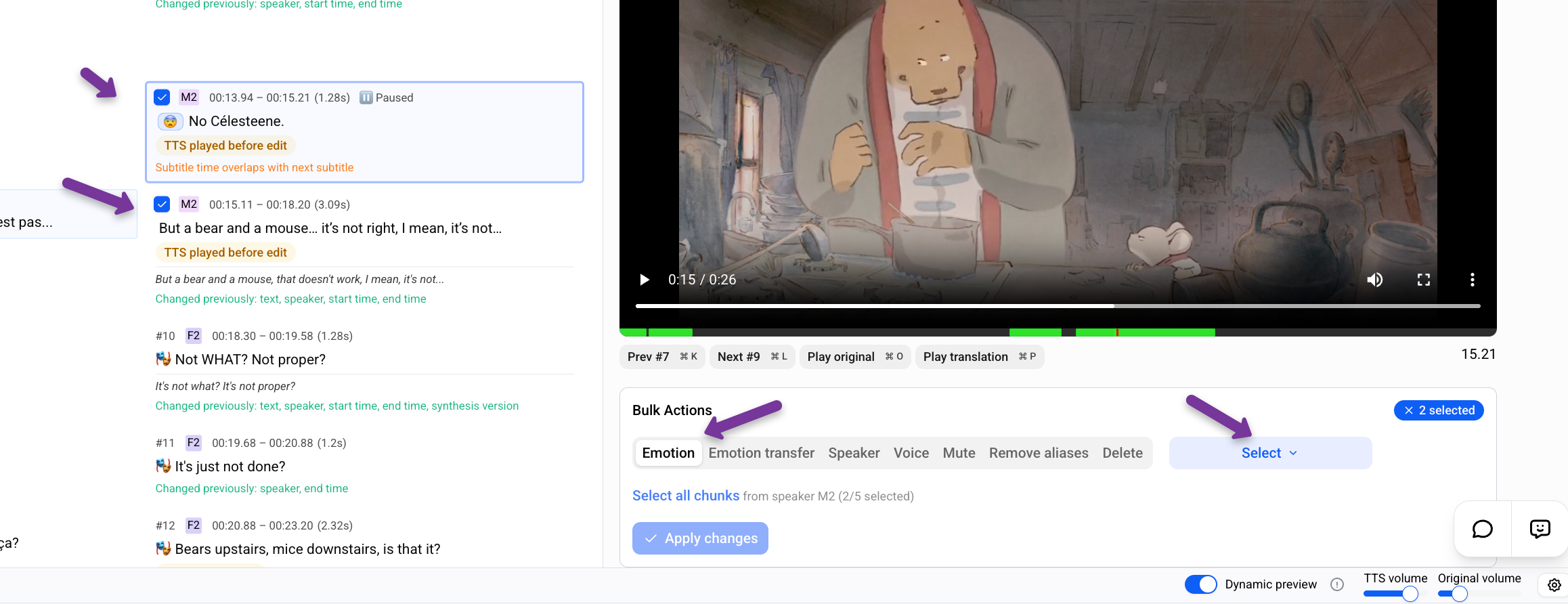
Select the audio tag or create the custom one.
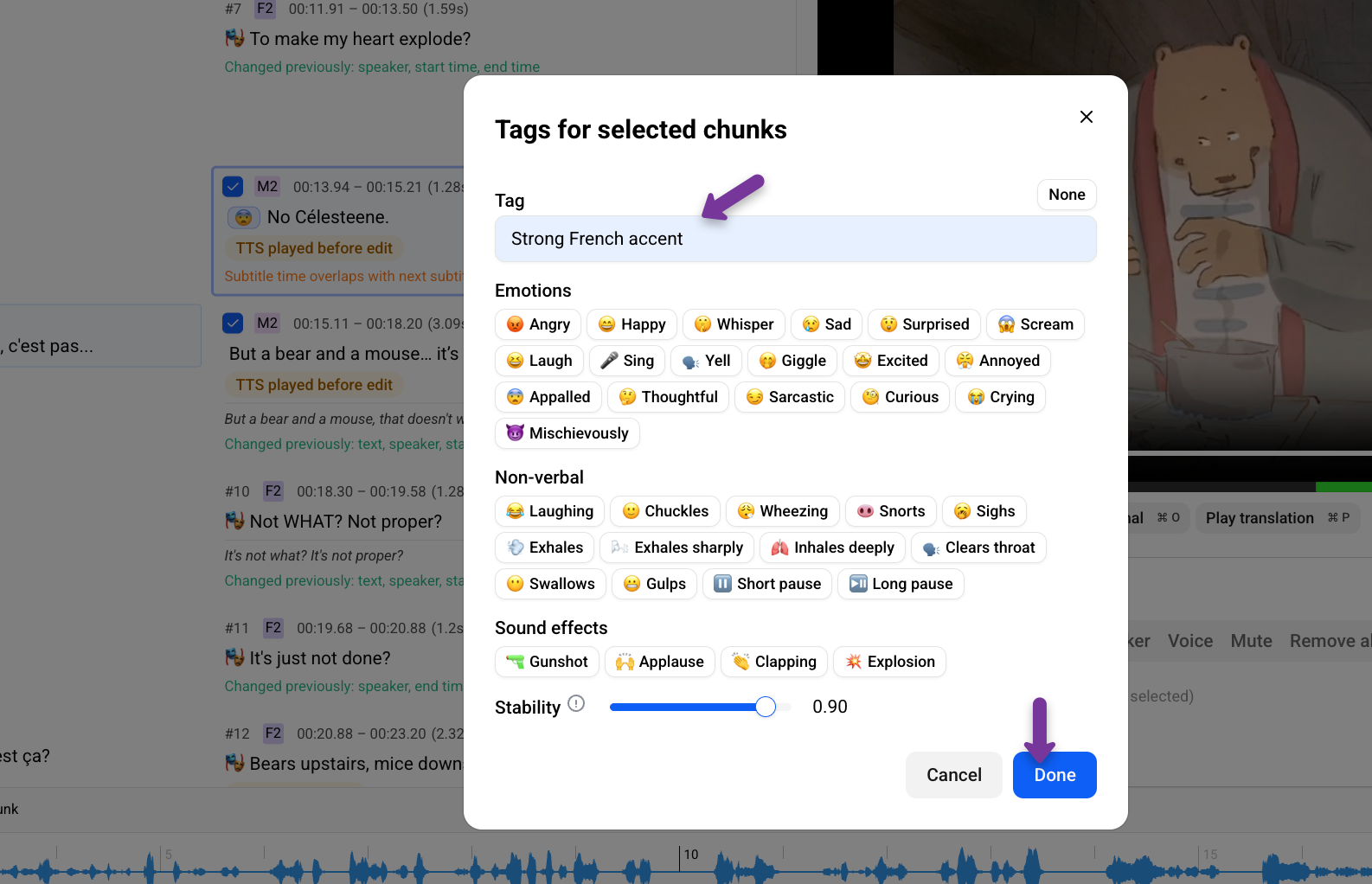
Click Done to assign the tag to all selected chunks.
Click Apply changes.
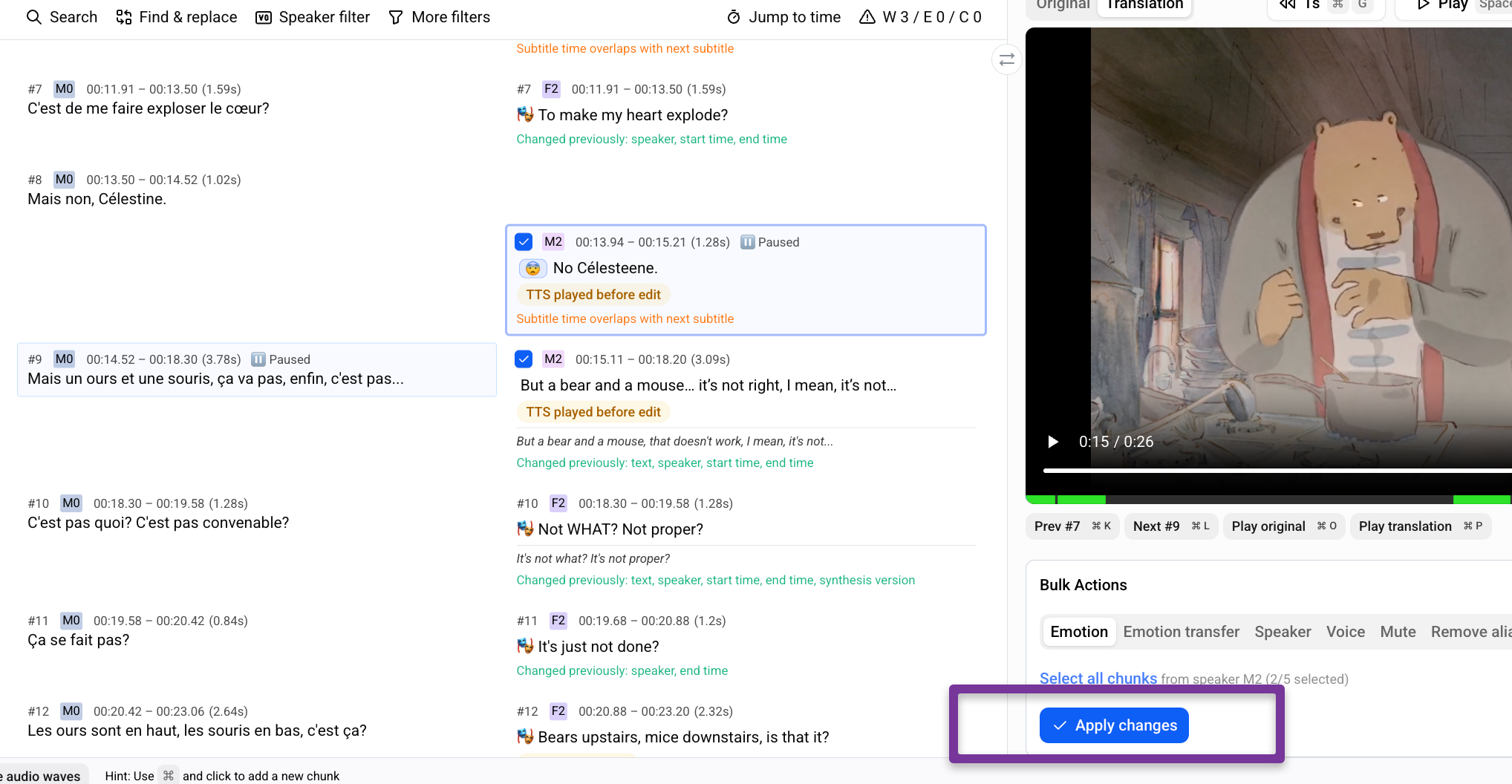
The tag will be applied at the beginning of the chunk.
Example Tags
Pauses
[short pause][long pause]
Emotional tone
[sarcastic][curious][excited][crying][happy][mischievously]
Vocal styles
[whispers][in a low voice][strong German accent][sings]
Non-speech sounds
[sighs][exhales][laughter][snorts][swallows][gulps]
Sound effects
[applause][explosion][gunshot]
Limitations
There is no predefined list of supported tags. Results may vary depending on the selected voice, language, and phrasing.
If a tag does not produce the desired result:
Try simpler or more common wording.
Rephrase the instruction.
Test alternative tags with similar meaning.
Voice characteristics may also affect the result. Some voices perform certain emotions or speaking styles better than others.