Voice Design
Voice Design lets you generate a synthetic voice based on a written description — no recording required.
When to Use Voice Design
Voice Design works best when:
You need a unique voice for creative projects — games, audiobooks, animations, podcasts, or character roles.
You don't have access to a recording setup or voice actor.
You want a voice that doesn't exist in premade libraries — a fictional accent, a stylized character, a fantasy creature, or theatrical narration.
You want to iterate quickly across different voice types with minimal effort.
How to design a voice
1. Go to the Voices tab
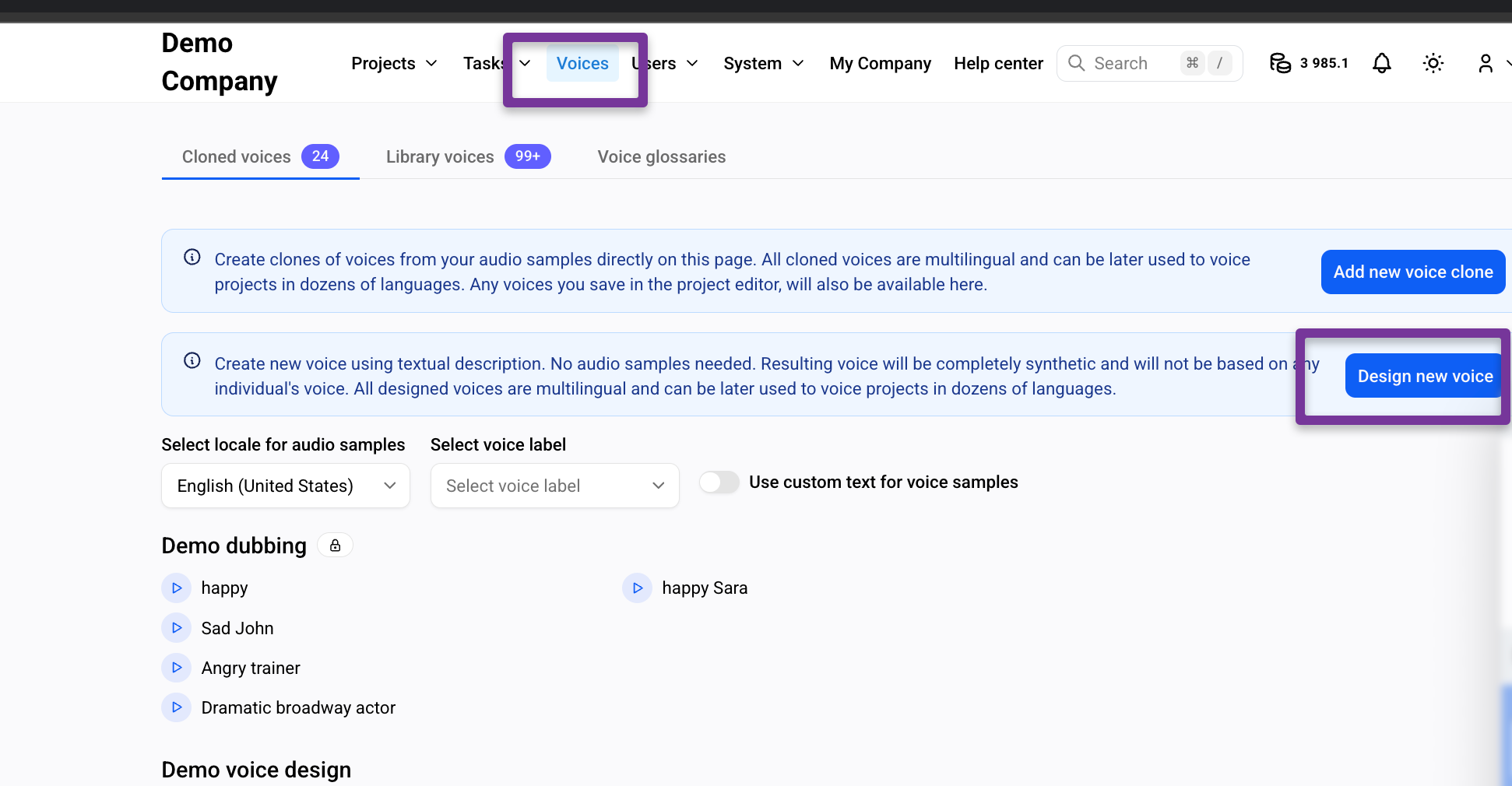
2. Click Design New Voice.
3. Write a prompt describing the voice.
Use preferred characteristics — age, gender, accent, tone, pacing, style, and intended use.
Examples:
A calm, professional male voice in his mid-40s with a neutral European accent. Clear articulation, steady pacing, confident but not dramatic. Suitable for news broadcasting and documentary narration. Studio-quality recording, balanced tone, no exaggeration.
An elderly male voice with a slightly raspy and mystical tone. Slow pacing, expressive delivery, with a sense of wisdom and mystery. Sounds like an old wizard telling a story. Slight echo-like depth, cinematic feel.
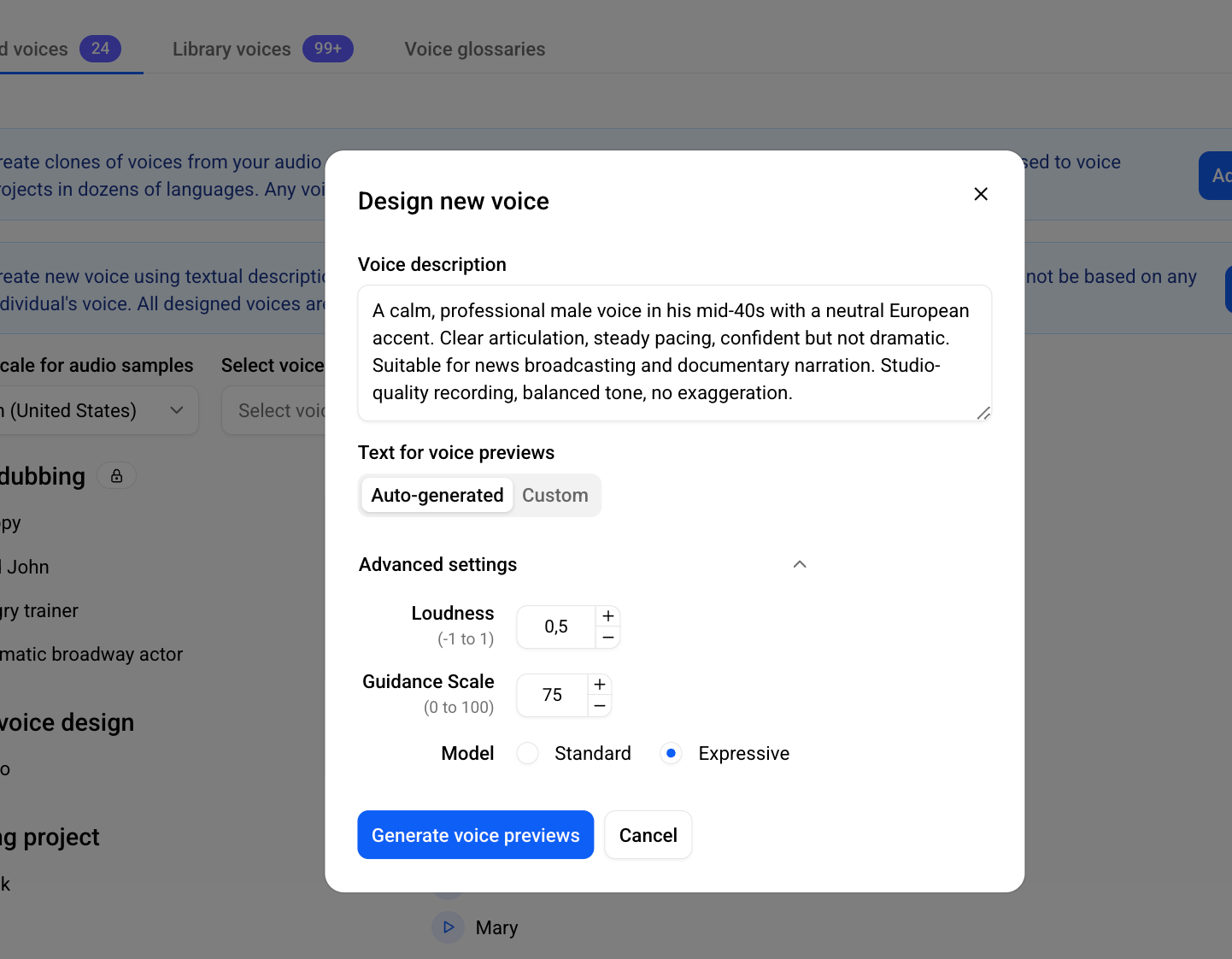
4. Select the text the generated voice will use for the preview sample.
Auto-generated — the voice produces a sample phrase automatically.
Custom — enter your own text to hear how the voice handles your specific content.
5. Expand Advanced Settings to fine-tune the voice output.
Loudness
Controls the energy and intensity of the voice — affects delivery style, not just volume.
Guidance Scale
Controls how closely the voice follows your prompt.
Troubleshooting:
Voice doesn't match your prompt → increase Guidance Scale
Voice sounds too rigid → decrease Guidance Scale
Voice sounds flat → increase Loudness
6. Choose between Standard and Expressive modes.
For details on the difference, see the Voice Cloning article.
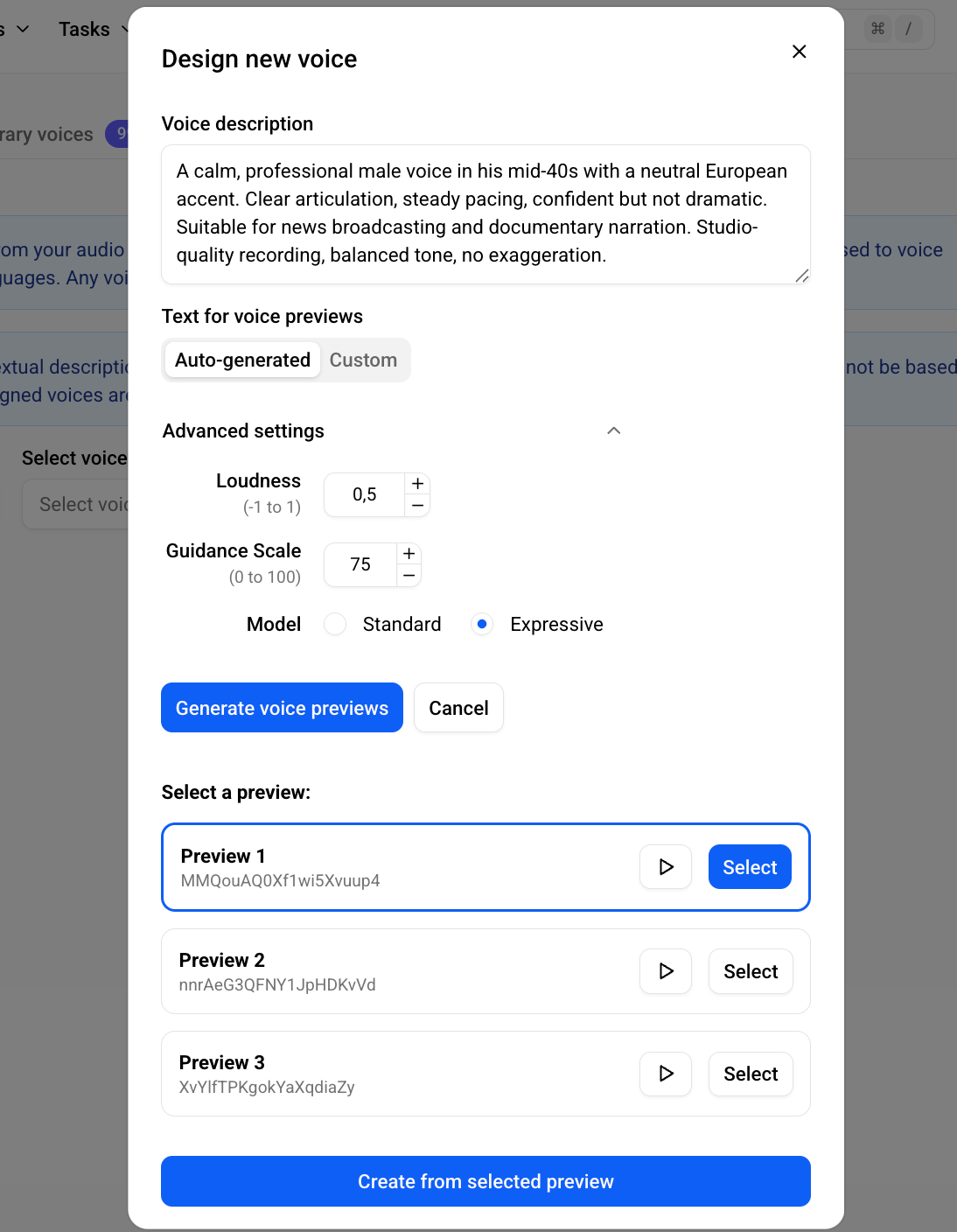
7. Click Generate Voice Previews to produce several voice samples.
Listen to each and identify the one that best fits your needs.
8. Select your preferred preview.
9. Click Create from Selected Preview.
10. Save the voice
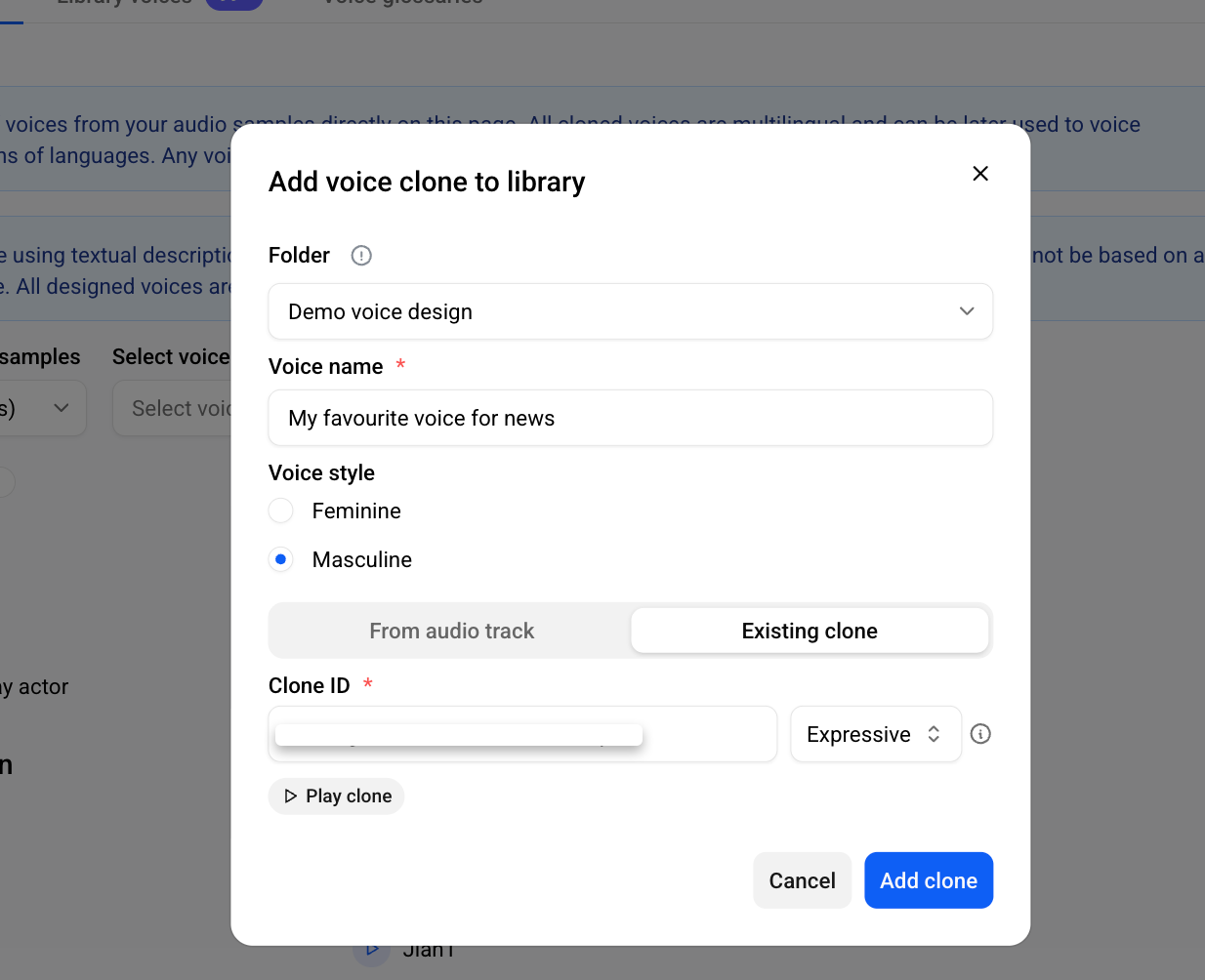
Choose an existing folder or create a new one.
Enter a name for the voice.
Click Add Clone to save it to your Voice Library.
Was this helpful?
Still need help? Share an idea