Folders, Projects and Statuses
Group related projects into folders to keep your workspace organized and easier to navigate.
Creating a folder
Go to the Projects page.
Click Folder.
Enter a name for the folder and click Create.

The new folder appears in the Projects list.

Moving projects into a folder
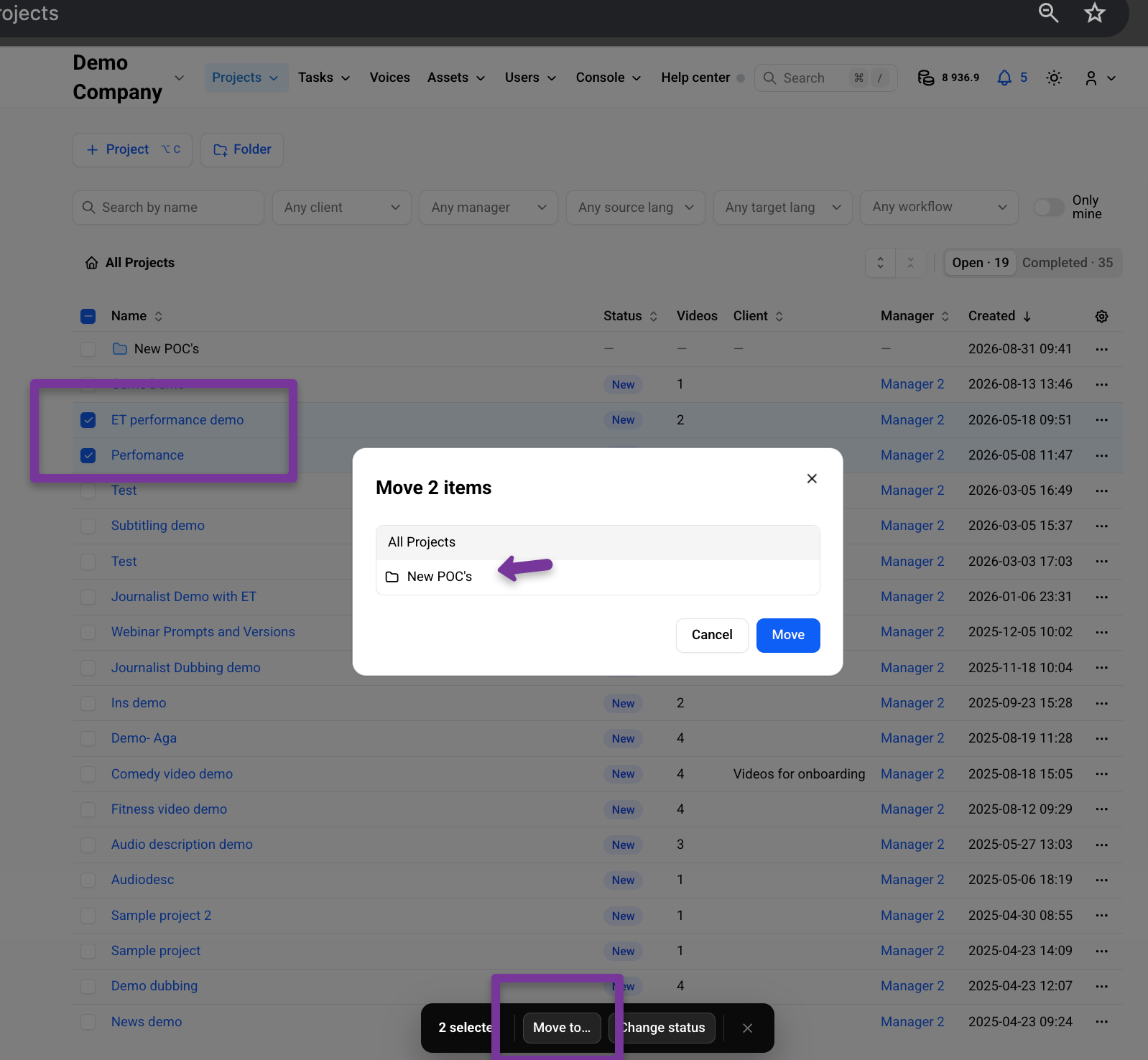
Move several projects at once
On the Projects page, select the checkboxes next to the projects you want to move.
Click Move.
Choose a folder from the dropdown list.
Move a single project
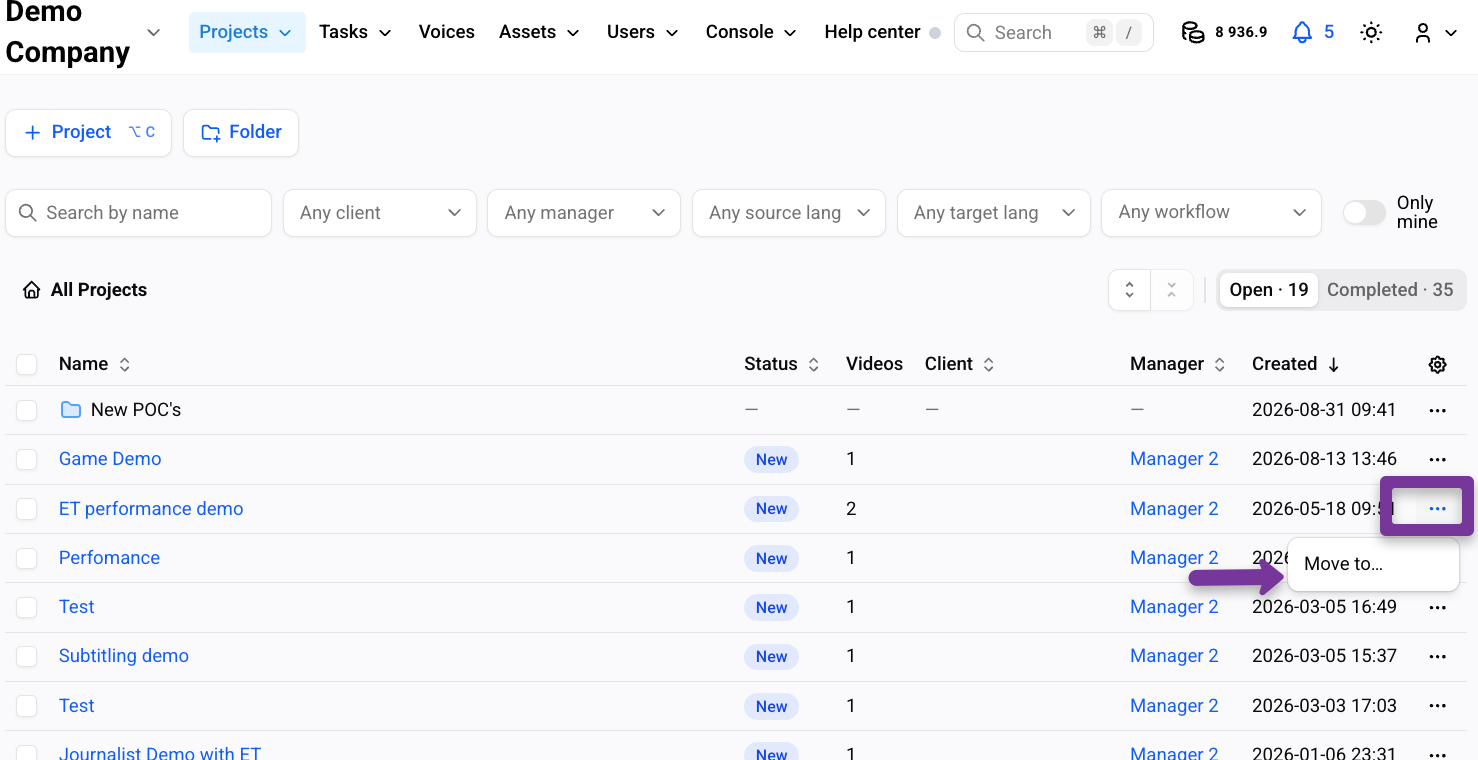
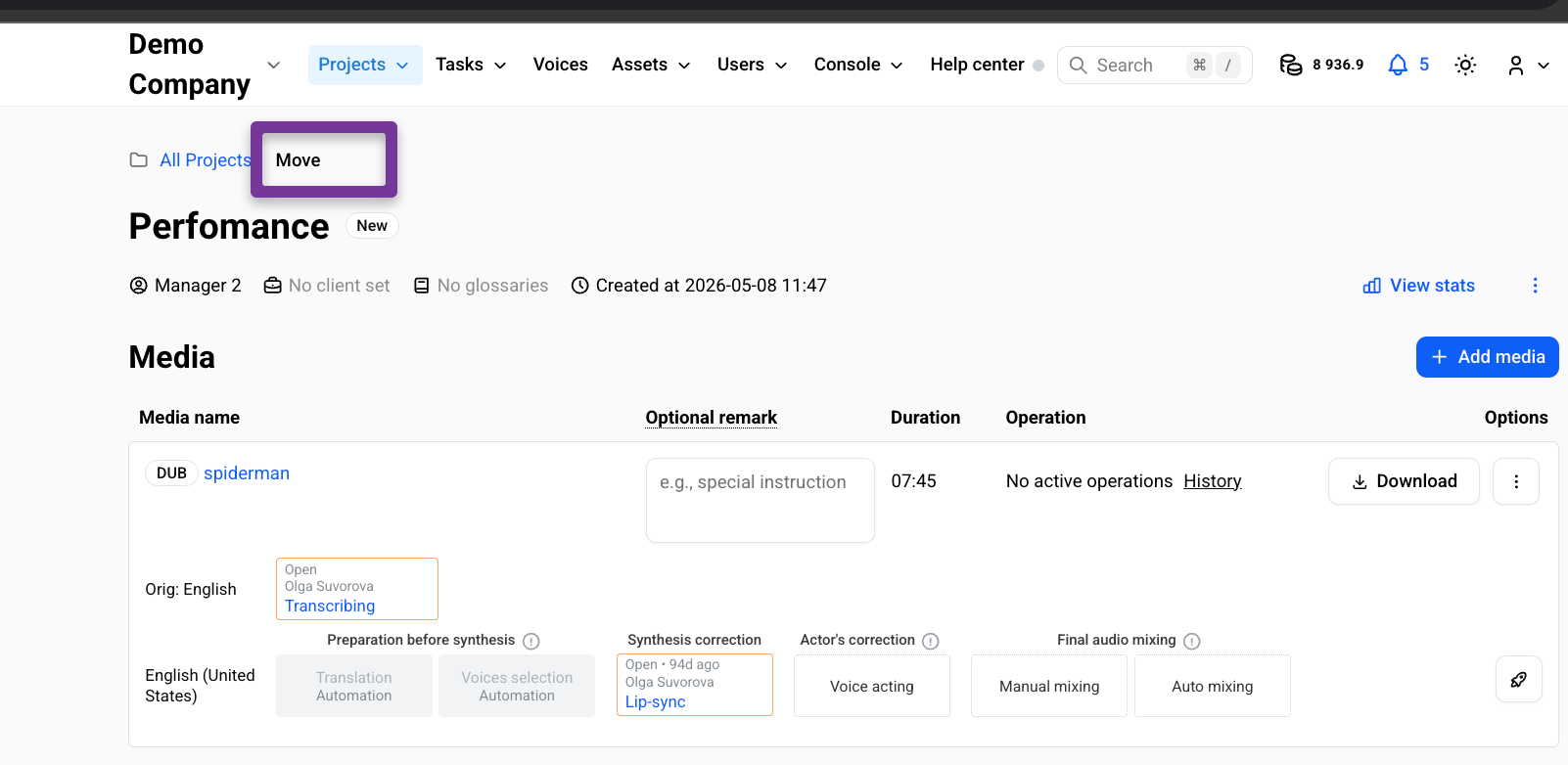
You can move a single project in either of two ways:
From the Projects page — click the three-dot menu next to the project and select Move.
From the project page — open the project and click Move, located next to the project name at the top of the page.
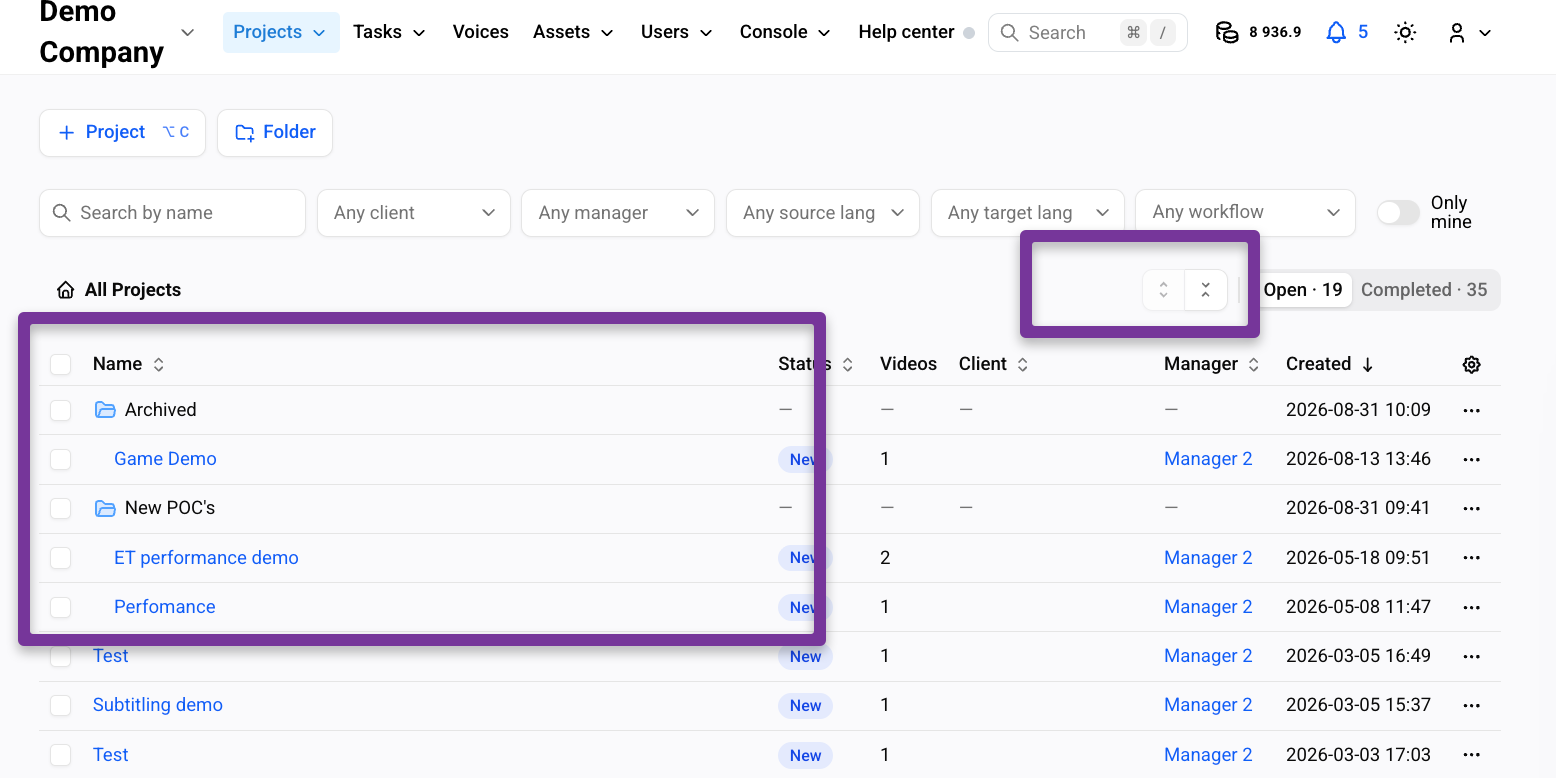
Expanding and collapsing folders
Click the folder icon to expand a folder and view its projects, or collapse it to hide them.
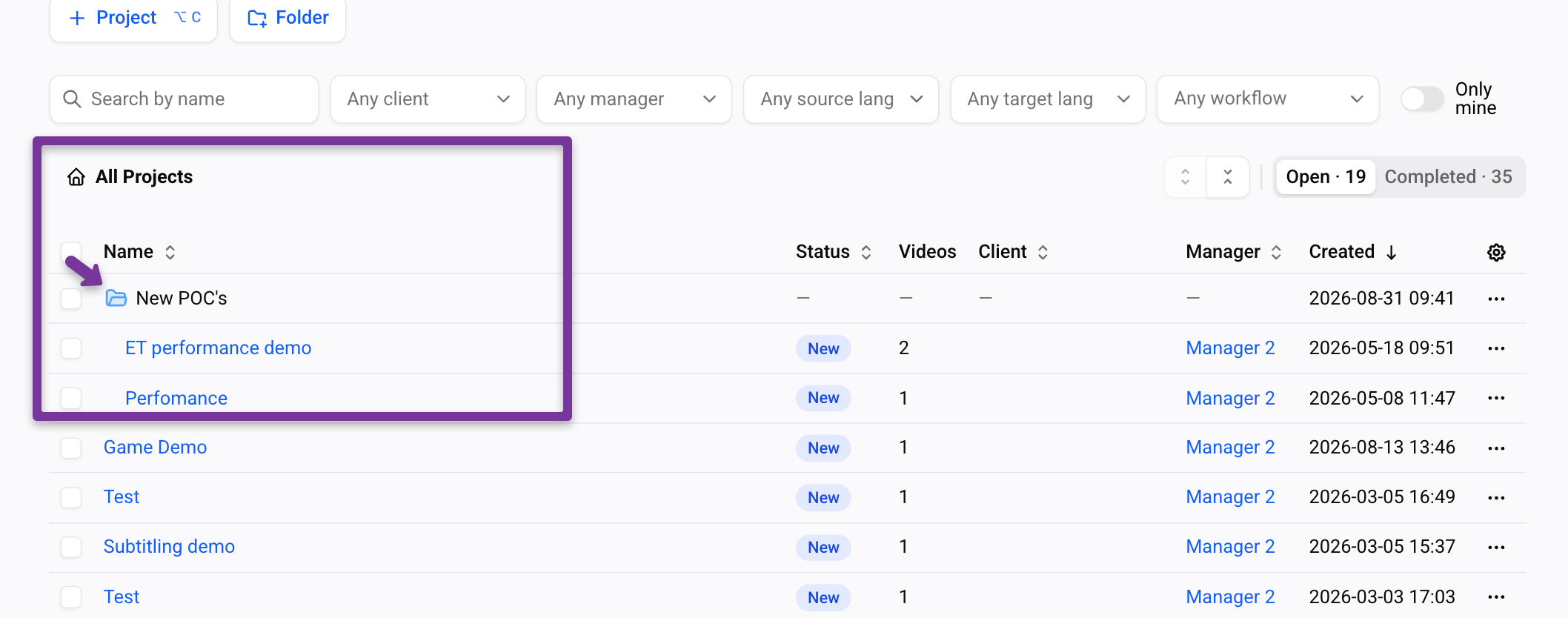
Use the expand-all / collapse-all icons to open or close all folders at once.
Changing project status
Select the checkboxes next to the projects whose status you want to change.
Click Change status.

Choose the new status: New, In progress, or Completed.
Was this helpful?
Still need help? Share an idea